


Building a Model Context Protocol (MCP) Server with Gradio
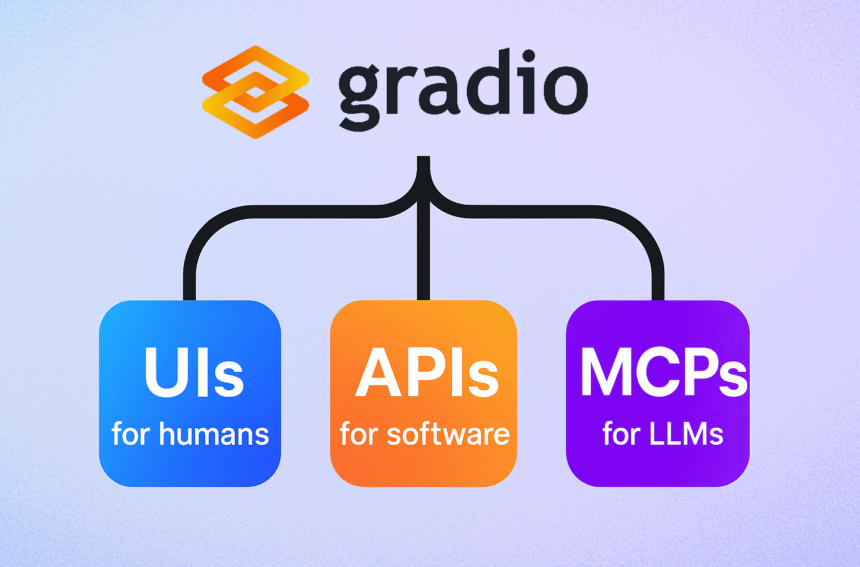
Gradio is revolutionizing the way developers create interfaces for machine learning models. With over a million monthly users, this Python library not only simplifies the process of building user interfaces but also opens up new avenues for integrating machine learning capabilities through the Model Context Protocol (MCP). This article is designed to guide you through the process of creating an MCP server using Gradio, enabling your applications to interact seamlessly with large language models (LLMs).
- What is an MCP Server?
- Prerequisites for Setting Up Gradio
- Why Build an MCP Server with Gradio?
- Example: Counting Letters in a Word
- Key Features of Gradio’s MCP Integration
- 1. Automatic Tool Conversion
- 2. Environment Variable Support
- 3. Efficient File Handling
- 4. Hosted MCP Servers on Hugging Face Spaces
- 5. Simplified Access to Tools
- Further Reading
What is an MCP Server?
An MCP server provides a standardized way to expose tools that can be utilized by LLMs, enhancing their functionality by granting them access to various capabilities. For instance, an MCP server can enable LLMs to perform tasks such as generating images, synthesizing audio, or executing specific calculations, like prime factorization. With Gradio, building these servers is straightforward, allowing developers to turn any Python function into an accessible tool for LLMs.
Prerequisites for Setting Up Gradio
Before diving into the coding, ensure you have Gradio installed with the necessary MCP extras. If you haven’t done this yet, you can easily install it by executing the following command in your terminal:
pip install "gradio[mcp]"This command will install Gradio alongside the required dependencies, including the mcp package. Additionally, you will need an LLM application that supports tool calling through the MCP protocol. Some popular MCP clients include Claude Desktop, Cursor, and Cline.
Why Build an MCP Server with Gradio?
Creating an MCP server with Gradio allows you to enhance the capabilities of LLMs significantly. By providing structured tools that the models can call upon, you can improve their performance and broaden their application scope. Whether you want to enable your LLM to perform complex calculations, generate multimedia content, or automate mundane tasks, an MCP server is your gateway to making that happen.
More Read

Example: Counting Letters in a Word
To illustrate how easy it is to set up an MCP server with Gradio, let’s create a simple application that counts the occurrences of a specific letter in a word. Here’s how you can do it:
import gradio as gr

def letter_counter(word, letter):
    """Count the occurrences of a specific letter in a word.

    Args:
        word: The word or phrase to analyze
        letter: The letter to count occurrences of

    Returns:
        The number of times the letter appears in the word
    """
    return word.lower().count(letter.lower())

demo = gr.Interface(
    fn=letter_counter,
    inputs=["text", "text"],
    outputs="number",
    title="Letter Counter",
    description="Count how many times a letter appears in a word"
)

demo.launch(mcp_server=True)
In this example, we define a function called letter_counter that counts the occurrences of a specified letter in a given word. By setting mcp_server=True in the .launch() method, we enable our Gradio app to function as an MCP server.
How It Works
When you run this app, it does the following:
- Initializes the Gradio web interface.
- Starts the MCP server.
- Displays the MCP server URL in the console.
The MCP server will be accessible at a specific URL, allowing you to integrate it with your chosen MCP client.
Key Features of Gradio’s MCP Integration
1. Automatic Tool Conversion
Every API endpoint in your Gradio app is automatically transformed into an MCP tool. This includes generating a name, description, and input schema for each tool. You can view the tool schemas by visiting the URL:
http://your-server:port/gradio_api/mcp/schema2. Environment Variable Support
You can enable MCP server functionality in two ways:
- Via the
mcp_serverparameter in your launch command. - By setting an environment variable:
export GRADIO_MCP_SERVER=True3. Efficient File Handling
Gradio’s MCP server takes care of file data conversions efficiently, handling tasks such as:
- Converting base64-encoded strings to file data.
- Processing image files and returning them in the appropriate format.
- Managing temporary file storage.
To ensure better compatibility, it is advisable to pass input images and files as full URLs.
4. Hosted MCP Servers on Hugging Face Spaces
You can also host your Gradio application for free on Hugging Face Spaces, which will provide you with a publicly accessible MCP server. This feature allows developers to share their tools easily with others. For example, you can check out a public space like MCP Tools.
5. Simplified Access to Tools
To use the tools from your hosted MCP server, simply configure your MCP client with the correct URL:
{
  "mcpServers": {
    "gradio": {
      "url": "https://your-space-name.hf.space/gradio_api/mcp/sse"
    }
  }
}
Further Reading
For those interested in expanding their knowledge, several resources can provide additional insights into Gradio and MCP servers:
By leveraging Gradio to build your MCP server, you can significantly enhance the functionality of your LLMs, making your applications more robust and versatile. With just a few lines of code, you can create tools that empower your models to do much more than they could on their own.
Inspired by: Source


