


Leveraging Generative AI for PS1-Style 3D Asset Generation
Generative AI is revolutionizing the artistic workflows in game development, particularly in creating 3D assets. While text-to-3D technologies have historically lagged behind their 2D counterparts, recent advancements are changing this landscape. In this guide, we’ll explore practical workflows for generating 3D assets using Generative AI, specifically focusing on a PS1-style aesthetic. This approach is ideal due to its forgiving nature towards the lower fidelity of current text-to-3D models.
Prerequisites for 3D Asset Creation
Before diving into the steps, it’s essential to have a basic understanding of Blender and core 3D concepts such as materials and UV mapping. Familiarity with these tools will significantly enhance your workflow and ensure a smoother process as you create your 3D assets.
Step 1: Generating a 3D Model
To kick off your project, navigate to the Shap-E Hugging Face Space. This innovative platform utilizes the Shap-E model, a diffusion model developed by OpenAI, to generate 3D models from text prompts. For this tutorial, enter “Dilapidated Shack” as your prompt and click ‘Generate’. Once you find a model that resonates with your vision, download it for the next step.
Step 2: Importing and Decimating the Model
Open Blender (ensure you’re using version 3.1 or higher) and import your downloaded model by navigating to File → Import → GLTF 2.0. Upon importing, you may notice that the model has a higher polygon count than what’s suitable for many applications, particularly games.
To simplify the model, select it and go to the Modifiers tab. Choose the Decimate modifier and adjust the ratio to a low number, such as 0.02. While the result may initially appear less detailed, embracing this low fidelity is key to achieving the PS1 aesthetic.
Step 3: Installing Dream Textures
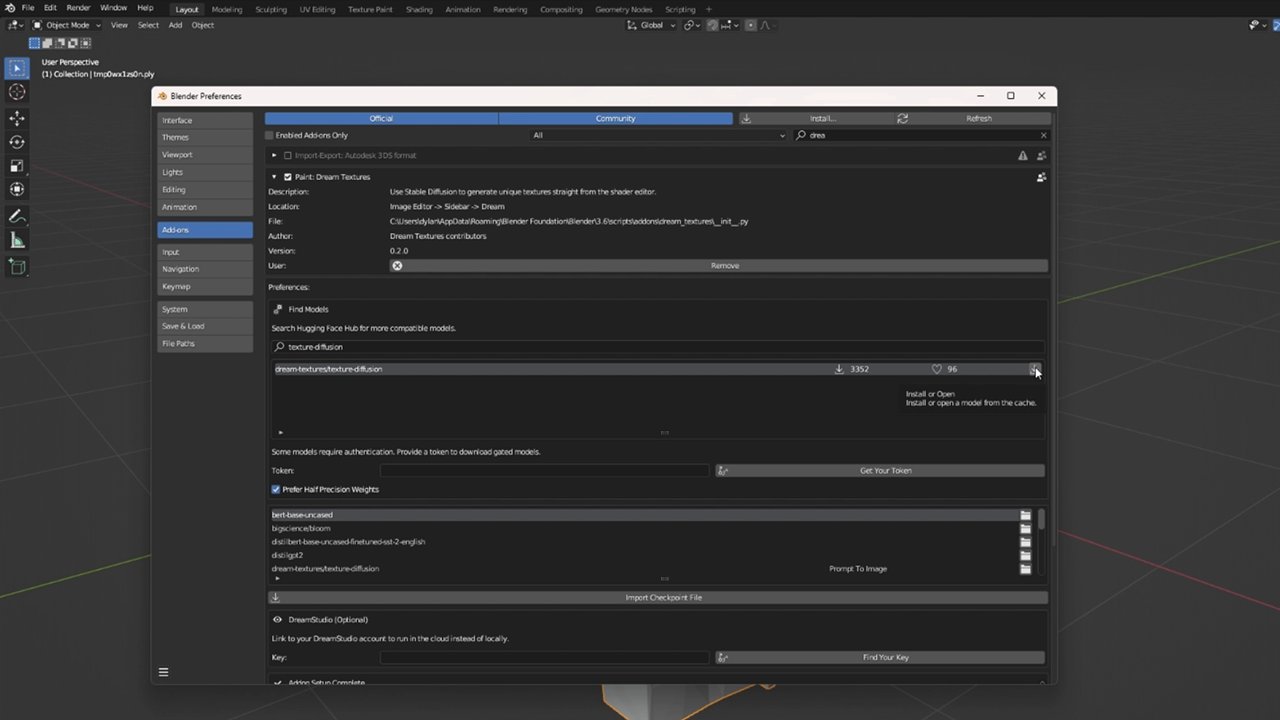
Next, we’ll enhance our model with textures using the Dream Textures add-on for Blender. This add-on is a stable diffusion texture generator that can significantly elevate your model’s appearance. Follow the instructions on the official repository to download and install the add-on.
Once installed, open the preferences and download the texture-diffusion model to get started.
Step 4: Generating a Texture
Now, let’s create a custom texture for our dilapidated shack. Open the UV Editor in Blender, press ‘N’ to open the properties menu, and navigate to the ‘Dream’ tab. Select the texture-diffusion model and set your prompt to ‘texture’, ensuring the seamless option is set to ‘both’.
For the subject, you could enter “Wood Wall” or any texture that fits your model. Click ‘Generate’, and once you’re satisfied with the outcome, save it under an appropriate name.
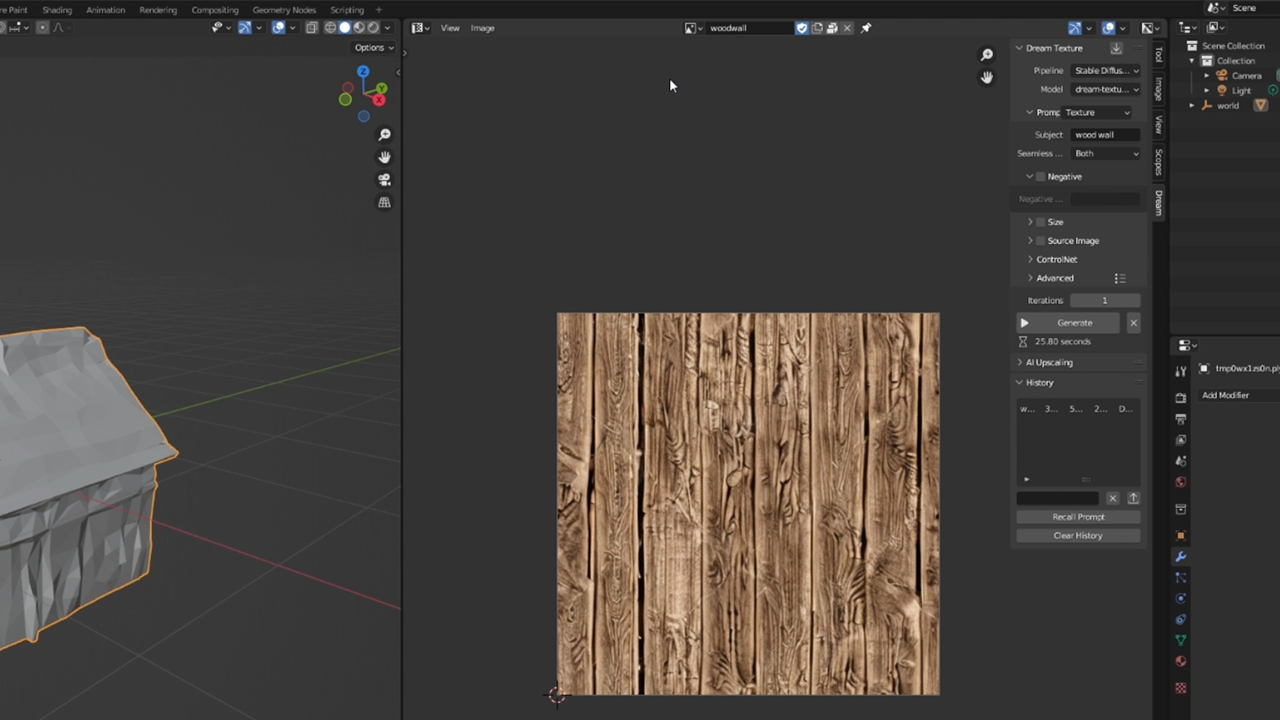
To apply the texture, select your model, go to the Material settings, create a new material, and under ‘Base Color’, click the dot and choose ‘Image Texture’. Select your newly generated texture to give your model a unique look.
Step 5: UV Mapping
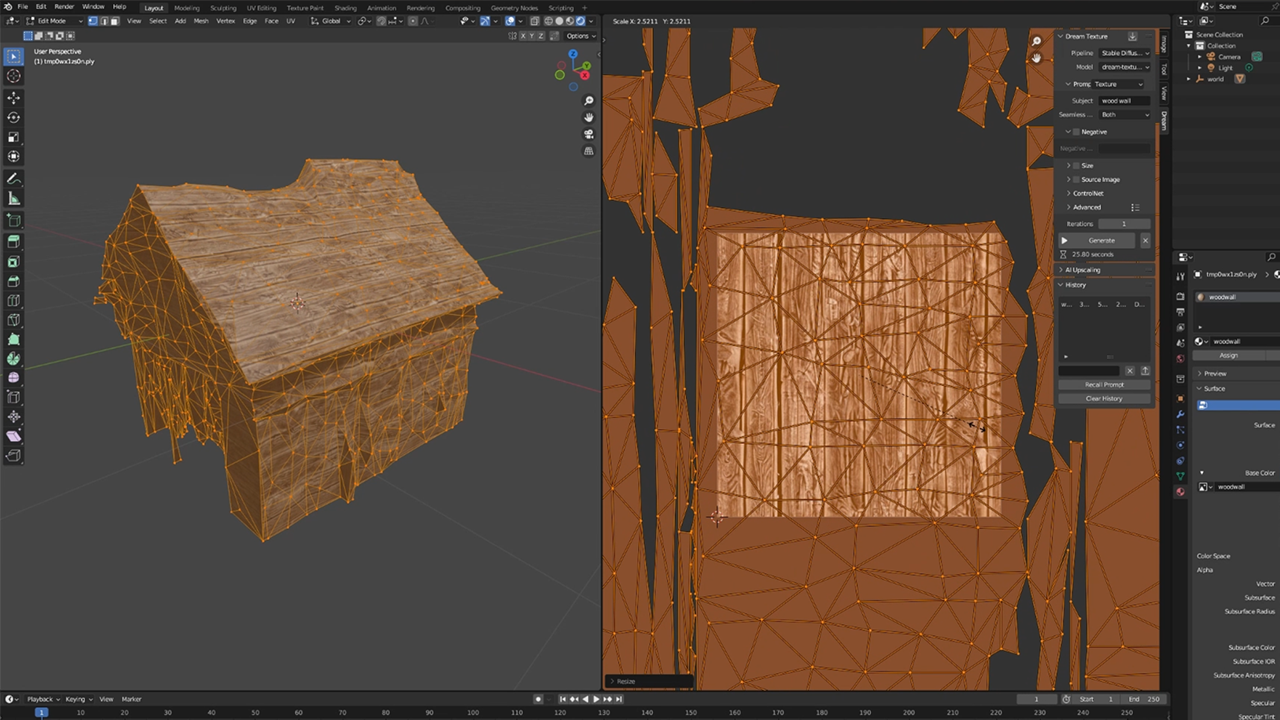
With the texture in place, it’s time to perform UV mapping, which wraps your 2D texture around the 3D model. Select your model and press ‘Tab’ to enter Edit Mode, then press ‘U’ to unwrap the model and choose ‘Smart UV Project’.
To see your textured model, switch to rendered view by holding ‘Z’ and selecting ‘Rendered’. Adjust the UV map to ensure a seamless tiling over the model. Remember, we’re aiming for a retro PS1 style, so resist the urge to make it too polished.
Step 6: Exporting the Model
After you’re pleased with your 3D asset, it’s time to export it. Navigate to File → Export → FBX. This will allow you to create a usable 3D asset that can be integrated into various game engines.
Step 7: Importing into Unity
The final step is to see your model in action. Import the FBX file into Unity or your chosen game engine. To achieve the nostalgic PS1 aesthetic, customize your settings with vertex-lit shading, disable shadows, add plenty of fog, and apply glitchy post-processing effects.
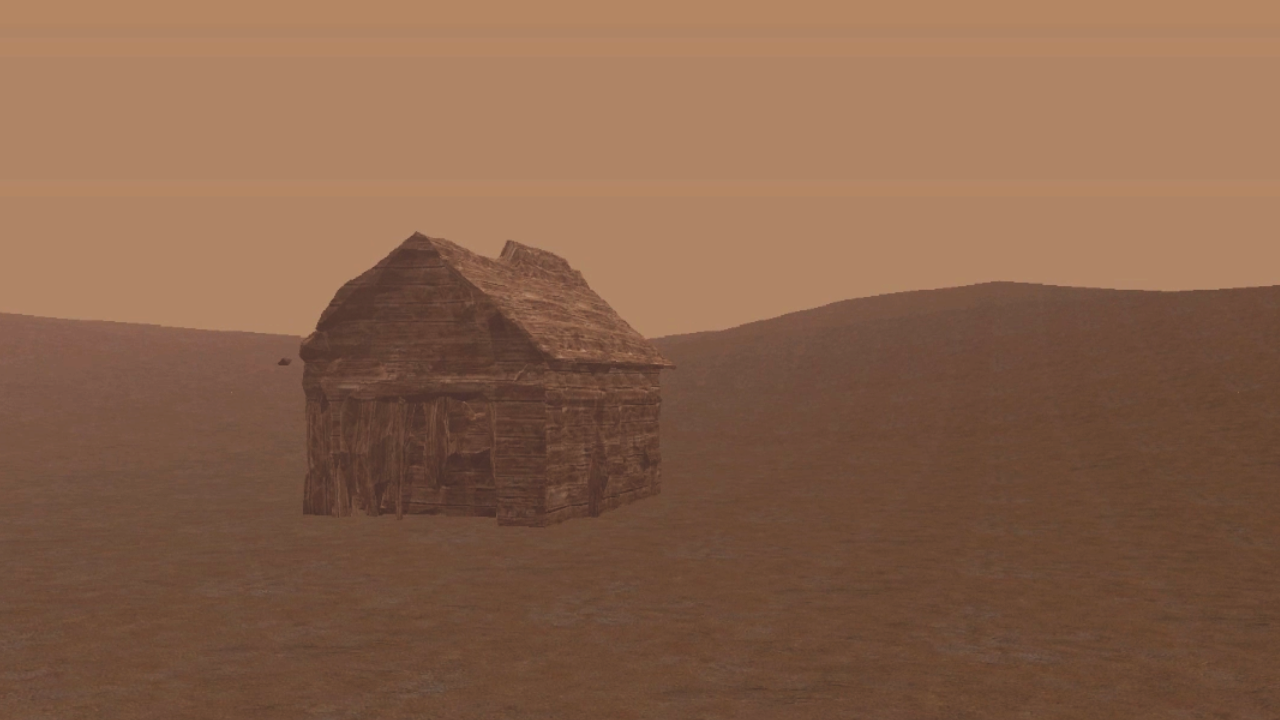
By following these steps, you’ll have successfully created a low-fi, textured 3D model ready for use in a virtual environment. The integration of Generative AI in this workflow opens up a world of possibilities for game developers, allowing for rapid asset creation while maintaining a unique artistic style.
Inspired by: Source


